Sendspin Audio Streaming
Sendspin is a synchronized multi-room audio system, integrated with Music Assistant and Home Assistant.
LedFx can connect to a Sendspin server as a client to receive audio for real-time visualization — no local microphone or loopback device required.
WARNING
Sendspin support requires Python 3.12 or later.
If you are running an older Python version, Sendspin will not appear as an option.
Check http://your-ledfx-ip:8888/api/info — the sendspin feature flag should be true.
Overview
Instead of capturing audio from a local sound device, LedFx connects to a Sendspin server over the network via WebSocket. Audio is streamed in real-time and fed directly into LedFx’s audio processing pipeline, enabling visualizations that are perfectly synchronized with the playback on other Sendspin clients.
Key benefits:
No virtual audio cables, loopback devices, or OS-specific configuration needed
Works across machines on the same network
Audio stays in sync with other Sendspin rooms/clients
Automatic server discovery via mDNS
Requirements
Python 3.12+
A running Sendspin server on your network
Network connectivity between LedFx and the Sendspin server
Adding a Sendspin Server
Open the LedFx UI and navigate to Settings → Features. If Sendspin is available, you will see an option to manage Sendspin servers.

Select Manage to open the Sendspin management dialog
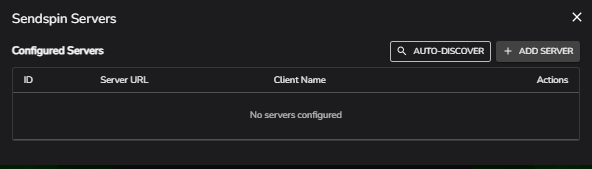
Manual Sendspin Server
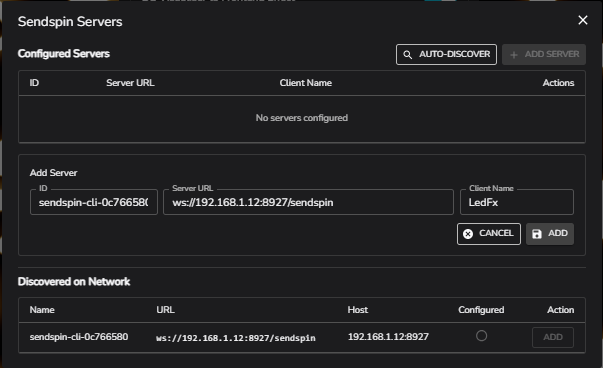
A server can be manually added with the +ADD SERVER button
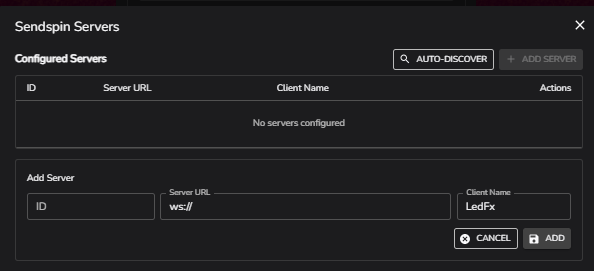
ID Name which will be used to display the Sendspin server in the audio devices list.
Server URL (e.g.
ws://192.168.1.12:8927/sendspin) which must begin with ws:// or wss://Client Name, which defines how Ledfx will be identified to the Sendspin server.
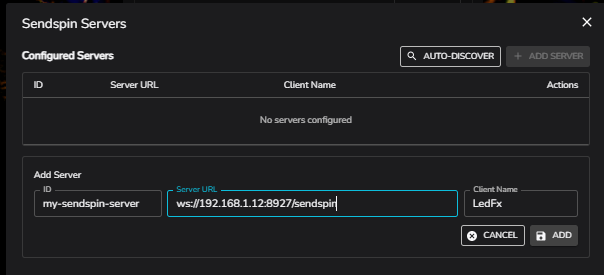
Click ADD to save the server configuration.
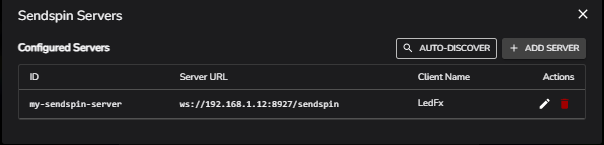
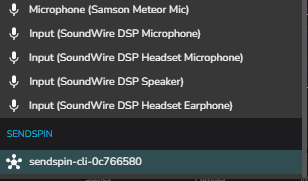
This Sendspin server will now be available as an audio source in the Settings / Audio drop down.
Auto-Discover Sendspin Servers
Ledfx can auto discover multiple Sendspin Servers present on your network using mDNS.
Click AUTO-DISCOVER to scan for available servers.
After a short period of time all discovered networks will be displayed. Those already configured will have a green tick in the Configured column.
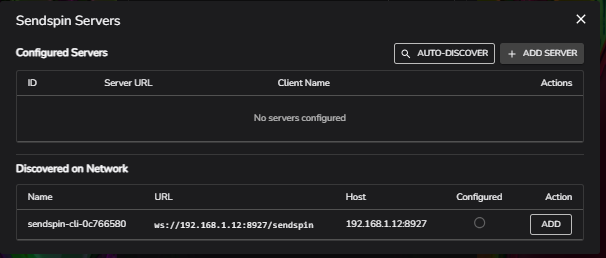
Each discovered server can be added by clicking the ADD action button.
Details can then be modified before final commit with the ADD button.
Selecting a Sendspin Server as Audio Input
Once a server has been added, it will appear as a selectable audio input device in Settings → Audio. Select it the same way you would select any other audio device.
When activated, LedFx will:
Connect to the Sendspin server via WebSocket
Negotiate for FLAC Mono, with a fallback to PCM Mono
Begin receiving audio chunks with timing information
Feed the audio into the visualization pipeline synchronized with all other sendspin audio end points.
If the connection drops, LedFx will automatically attempt to reconnect with exponential backoff.
Always-On Mode
Sendspin Always On is enabled by default. With this setting enabled, the Sendspin connection can stay active regardless of whether any effects are running.
This is a global setting found in the sendspin server management dialog (sendspin_always_on).
When enabled:
The Sendspin audio stream starts immediately when a Sendspin device is selected, even without active effects.
The stream remains active if all effects are removed.
On boot, if a Sendspin device was previously selected and this setting is
true, the stream starts automatically.
When disabled, Sendspin follows normal audio lifecycle behavior and may deactivate when no audio-reactive effects are subscribed.
This is useful for integrations where you want LedFx to be ready to visualize audio the moment playback begins, without requiring an effect to be pre-configured.