Scenes
Backend managed, collections of device and virtual settings activated via a single scene button or via Playlists.
In this capture we have two browser tabs side by side, so we can see scene activation and effect visualization in one view.
Example Config
Examples shown in this overview are available in the Example Config
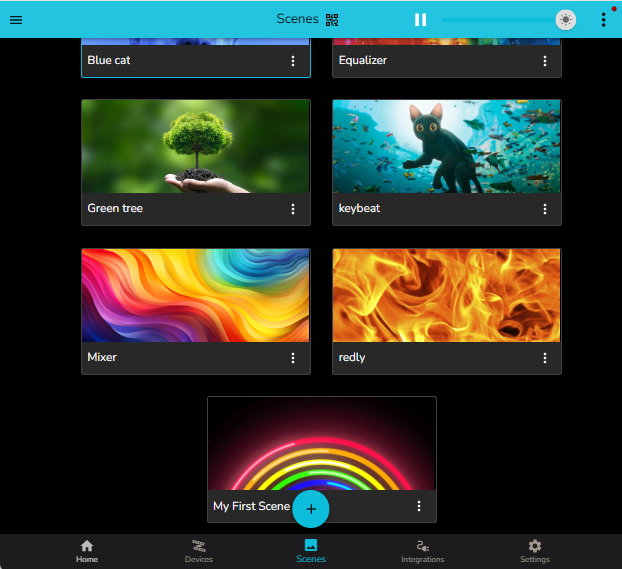
Scenes tab
The scenes tab can be accessed by the bottom bar icon.
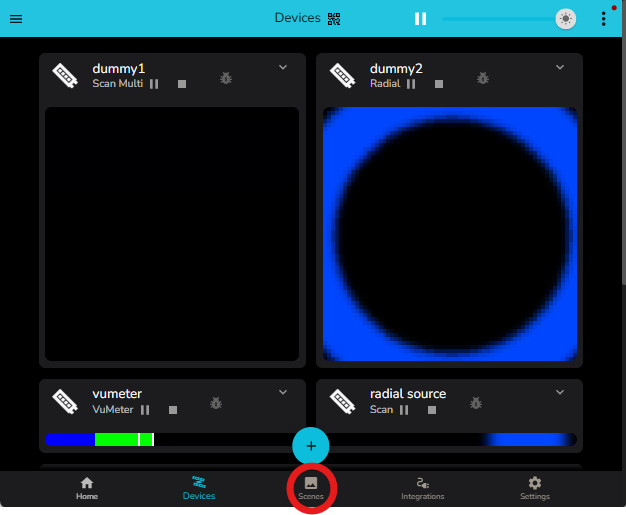
Adding a Scene
Scenes can be added by capturing the current device and virtual state.
Select the Add Scene item from the (+) menu
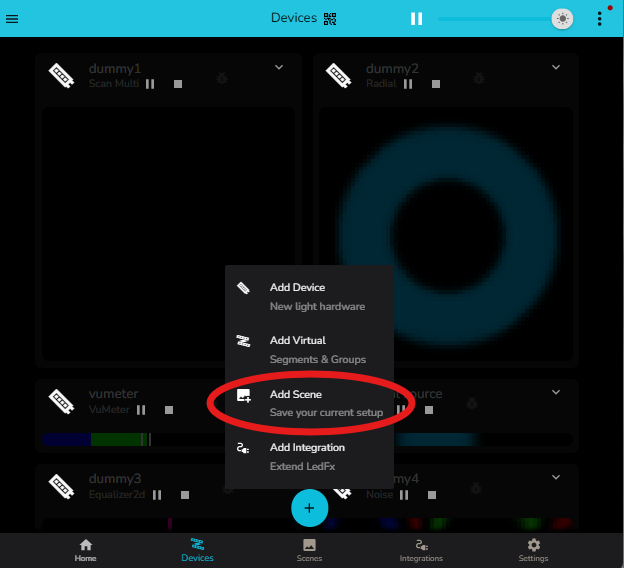
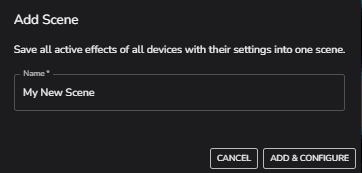
Give your new scene a name…
Edit your scene details. Such as adding an image from the asset manager.
The initial configuration is captured from the current active devices and virtuals.
If an effect is using a preset, it will be listed in the preset column.
Effects can be reselected from the dropdown on each row. Presets can be selected for the current effect from the adjacent dropdown.
The final column is for Action, how the device / virtual will be treated by the Scene.
In this example we have modified the first 3 devices. Any device / virtual can be set to
Activate - Run the effect configuration captured in the scene.
Ignore - No change will be made to the virtual / device on activating the scene.
Turn Black - A solid black single color effect will be enforced to keep the device active but visually off.
Stop - LedFx will stop sending data to the device, so endpoints such as WLED will revert to their local effect after a timeout.
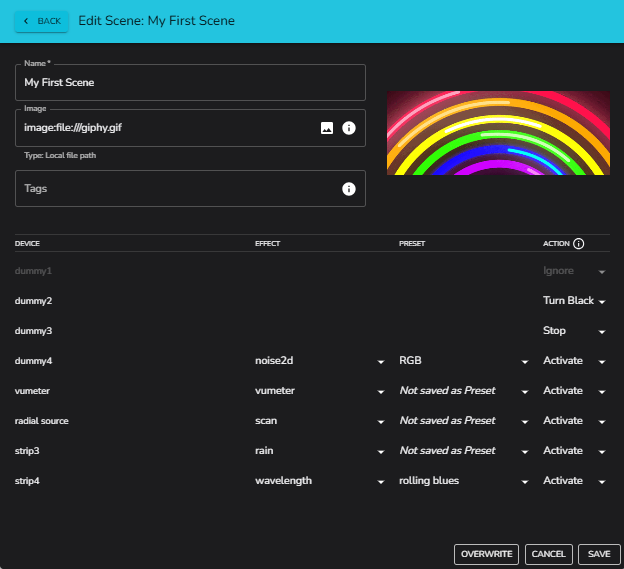
Hit Save and your new Scene will be available in the Scenes Tab.
Editing a Scene
A scene can be edited by selecting its 3-dot menu
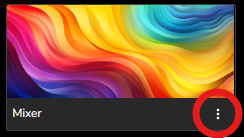
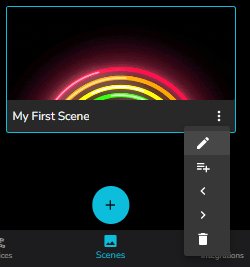
The same 3-dot menu also allows
Changing the display order of scenes with the < and > controls.
Deleting a scene
When editing a scene, all controls available at creation can be modified.
New devices added since scene creation will be displayed greyed out, with an Ignore action.
The scene configuration will be over written on selecting save.
It is also possible to overwrite all device / virtual settings in a scene with the current live configuration by selecting OVERWRITE