How to: Create a Dummy Matrix
It is now quite simple to setup a dummy device endpoint for a 2d matrix display, so you can run the 2d effects in the browser front end and use these to triage audio response. The following will capture those steps from scratch.,
Create a Dummy device
Starting from a clean config.json by deleting the file in the .ledfx directory, this is not necassary, but keeps all of my complex configurations out of the way for this example and ensures I turn on all the correct features from scratch.
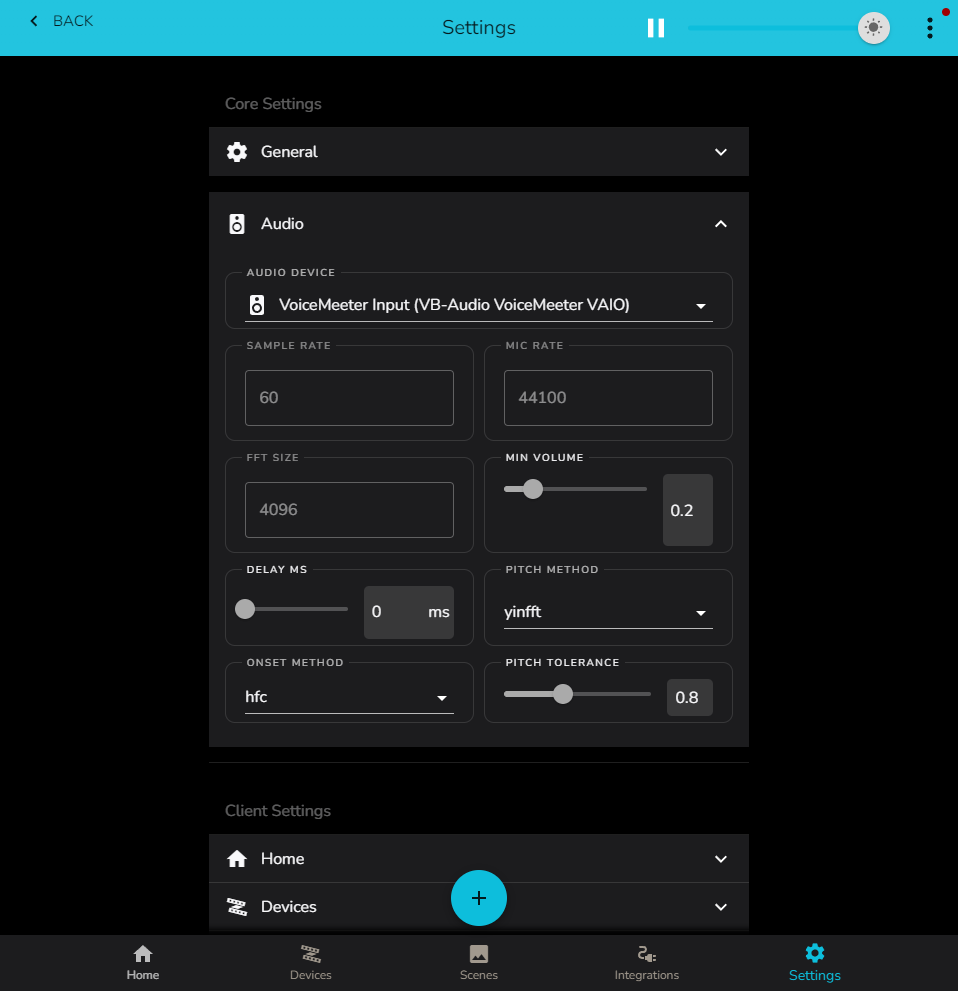
In my case my audio is routed from the loop back of voicemeeter, we are checking this to ensure we get audio when we get to test our equaliser2d effect
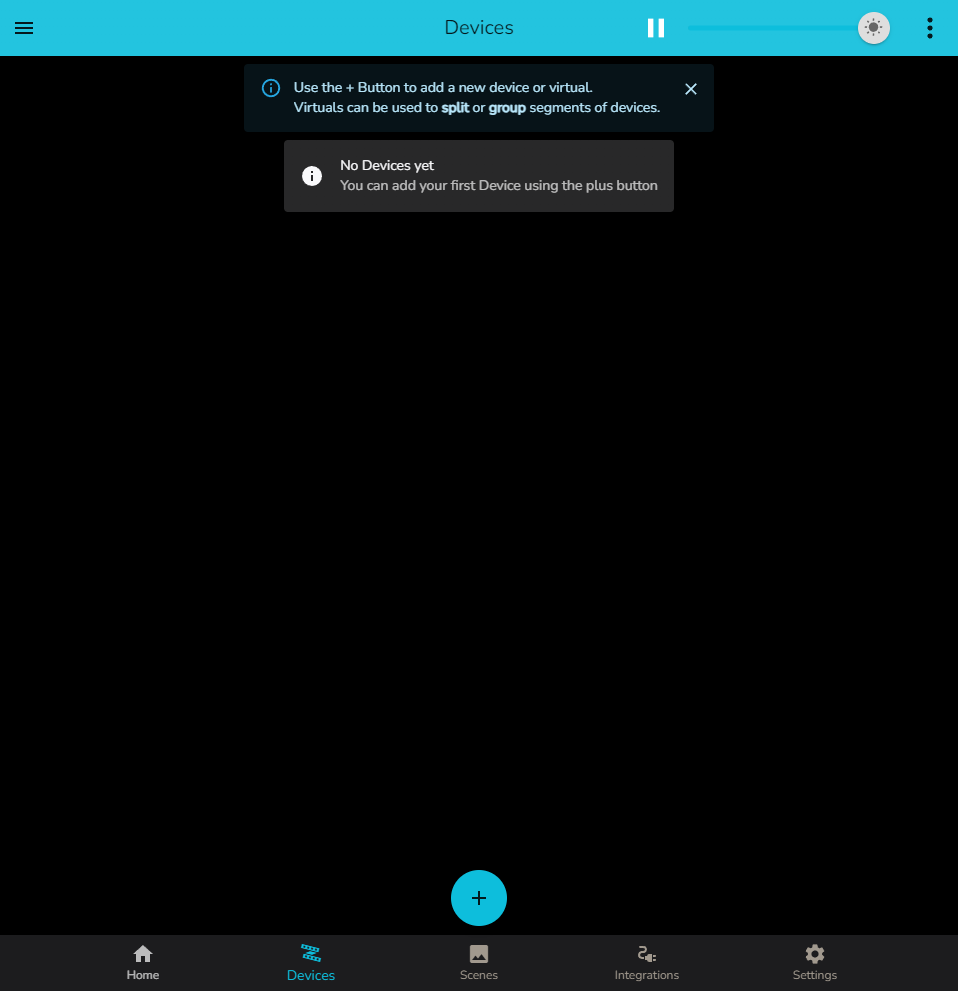
So lets add a device using the bottom icon
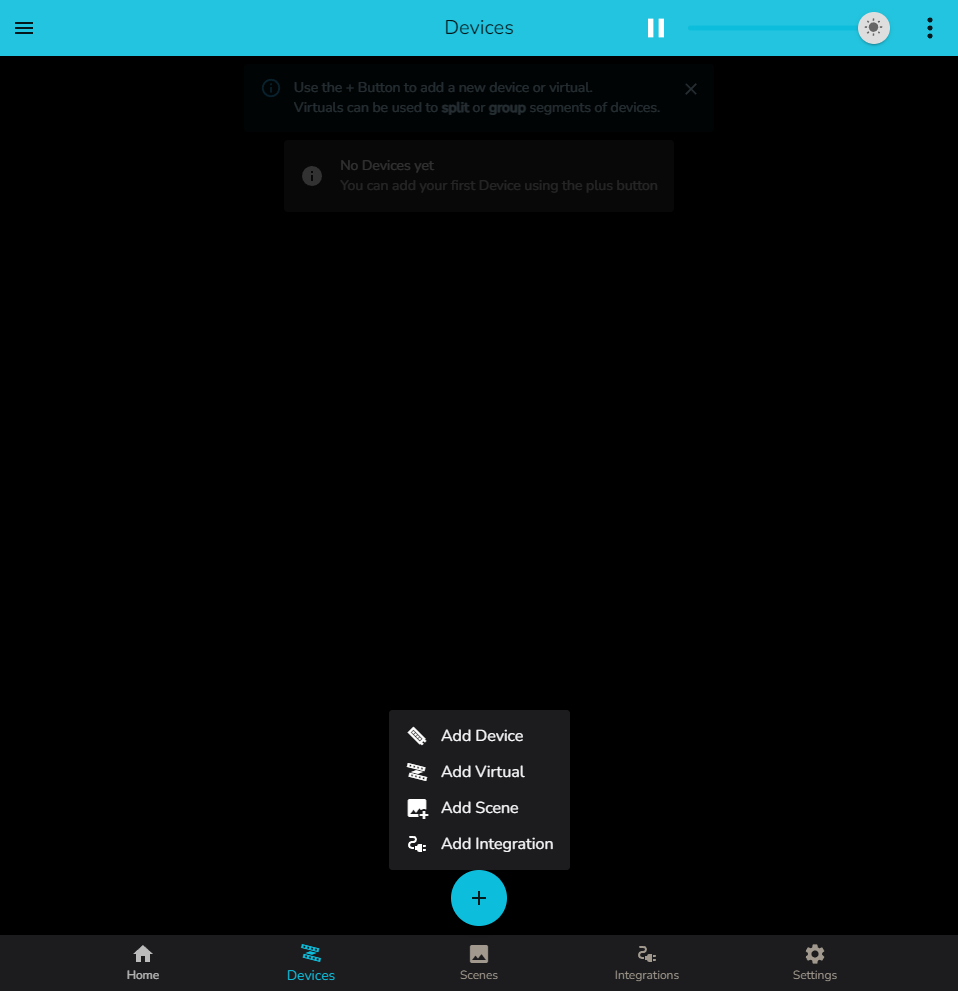
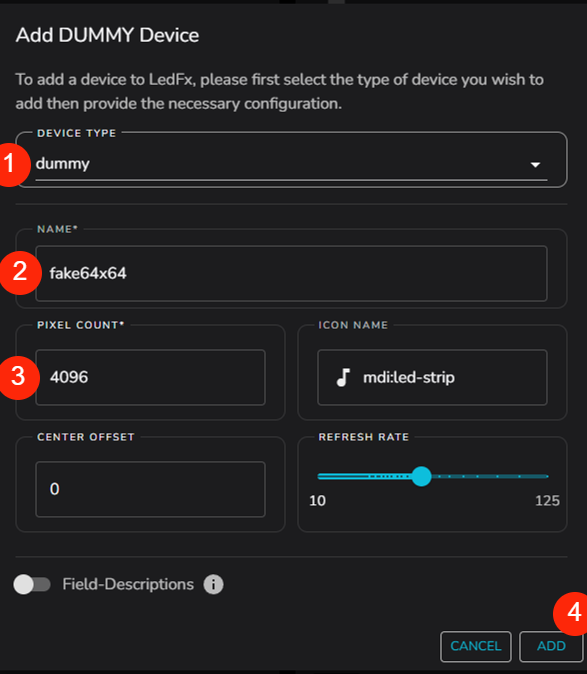
Select Dummy device type, which is a device type that will only render to the browser front end and is intended for testing
Give the device a name, in this case we are looking to imply the matrix layout and that it is fake, so use fake64x64, but its arbitrary
Note: Do not name your device starting with
gap-as this prefix is reserved for internal matrix editor placeholders. See the Reserved Device Naming section in the virtuals documentation for details.Set the number of required pixels, so for a 64 x 64 matrix = 4096, this is also the current limit of the front end update pixel count
hit ADD
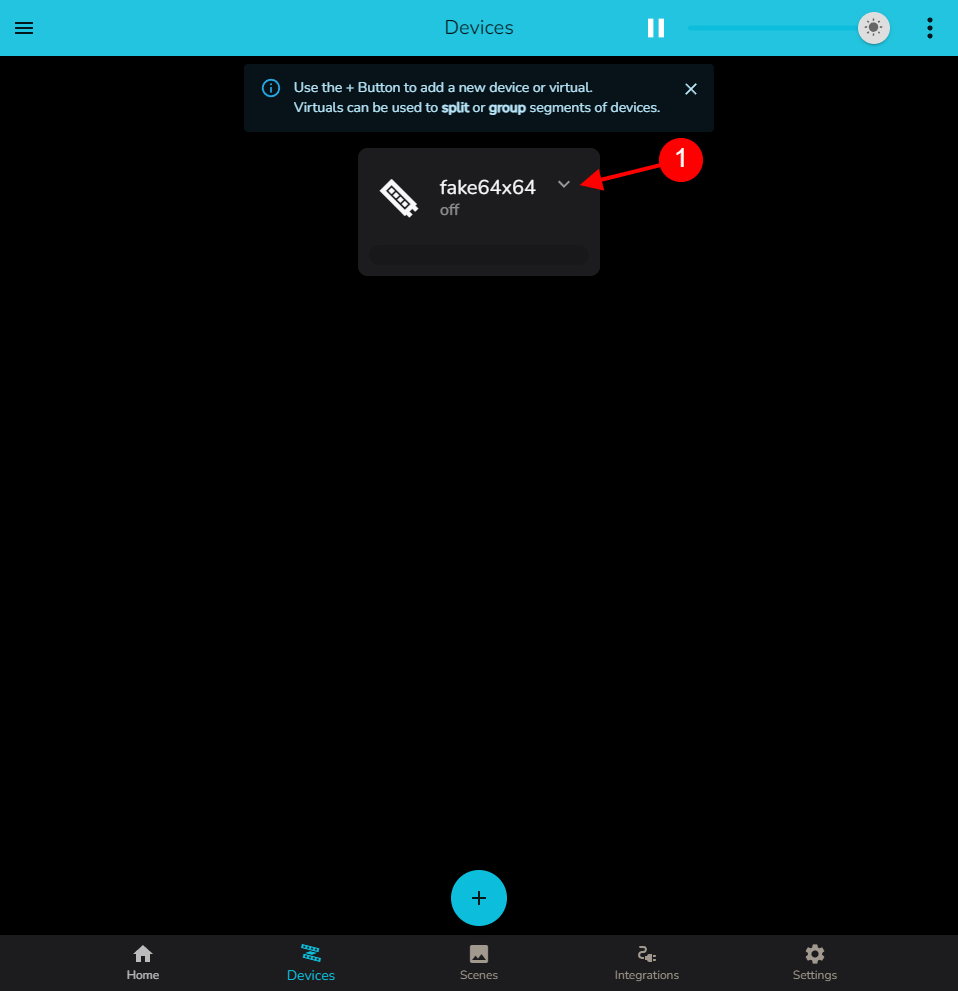
We should now have our device created (edited)
Make it a matrix
Press the little down arrow to the right of the device at (1)
and select settings (1)
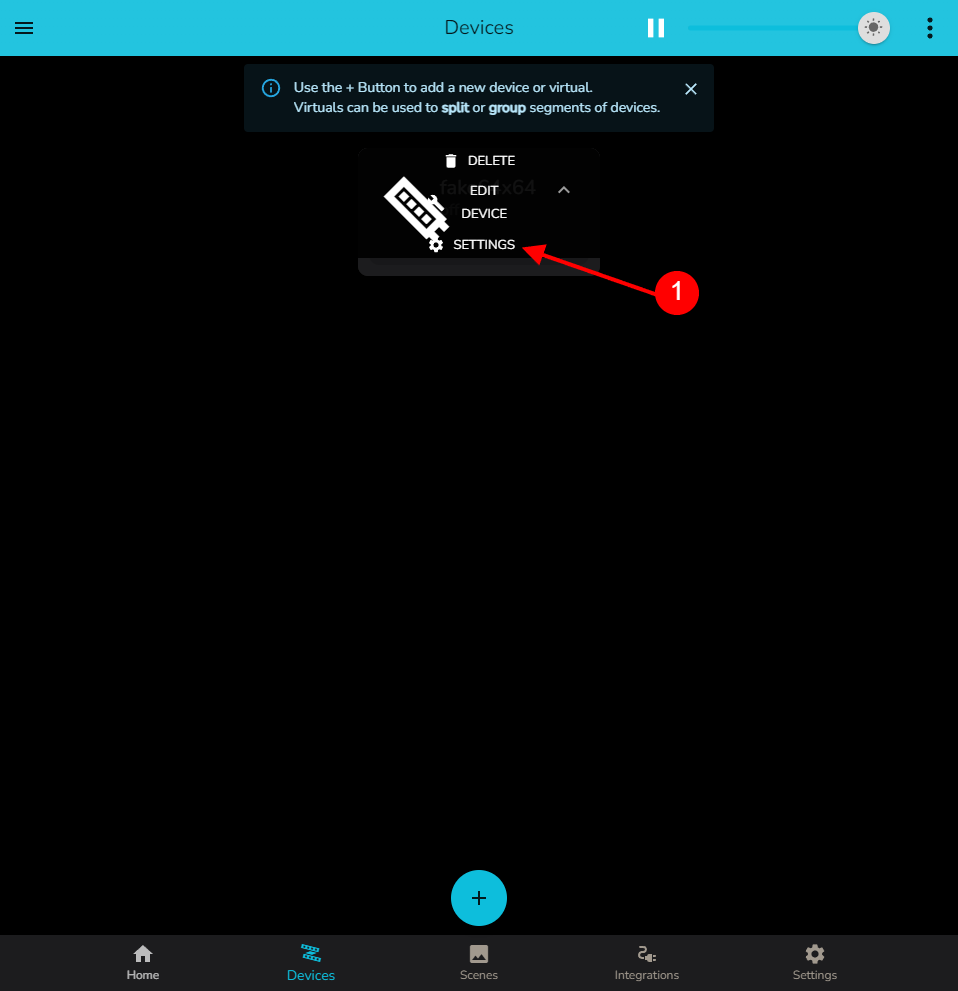
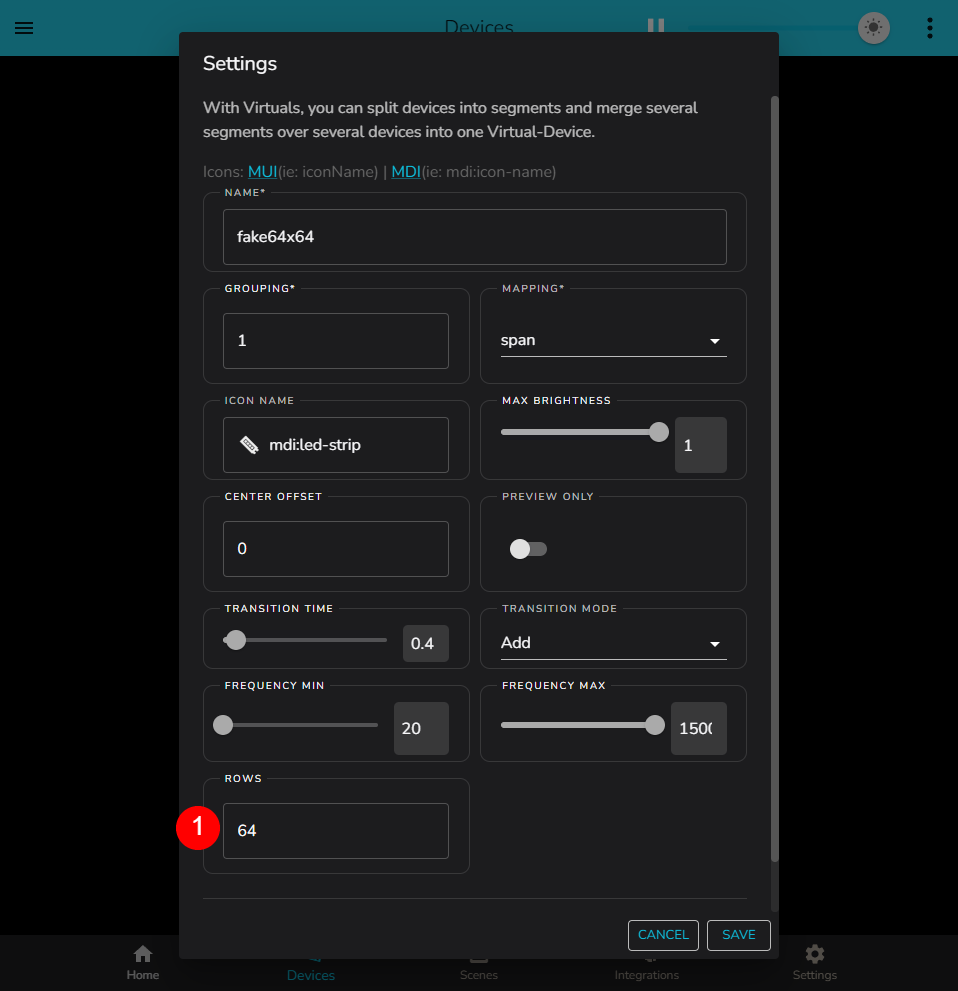
We need to set the number of rows in our matrix, in our case 64 so put that in the rows field and save
Ensure the front end passes all pixels
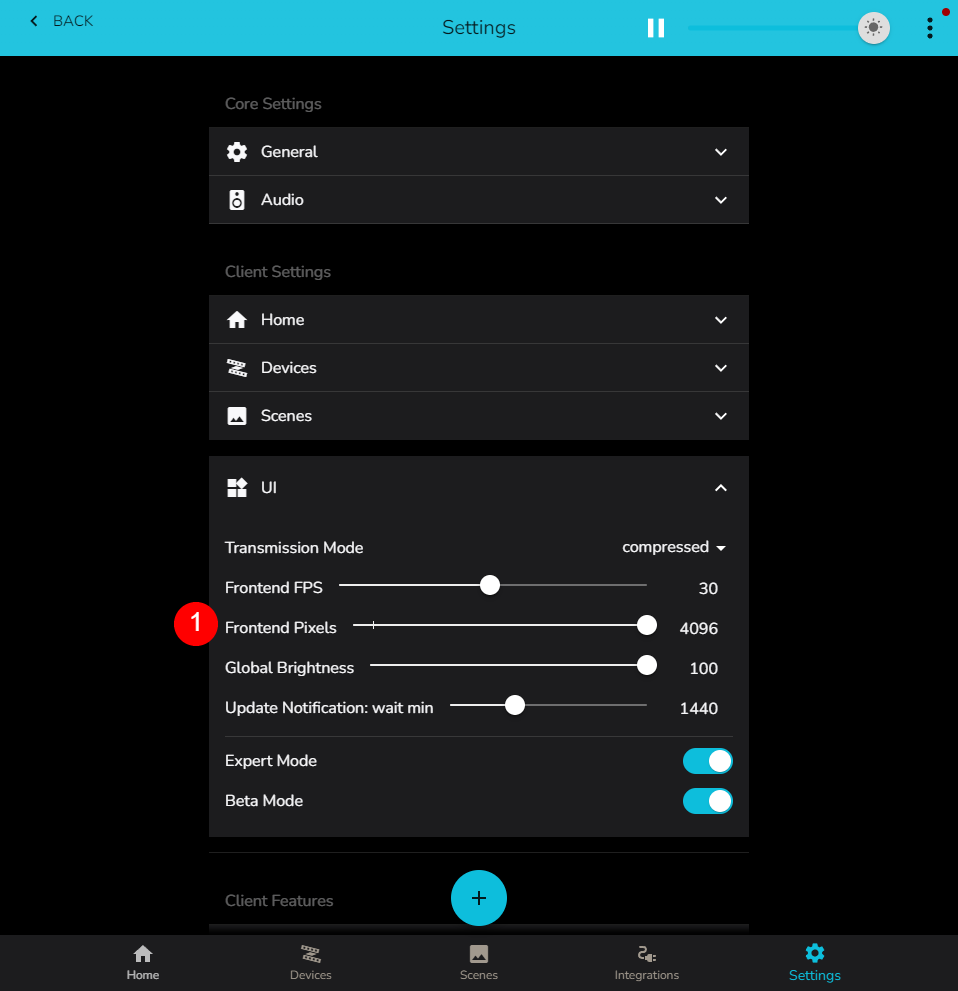
Now in Settings / UI we need to slide the Frontend Pixels all the way to the right to allow the backend to send all 4096 pixels to the browser front end, as per (1) (edited)
Choose the effect
Now open the fake device page and set the effect to Matrix / Equalizer2d
You will get a 1d strip effect at first if you have music playing.…
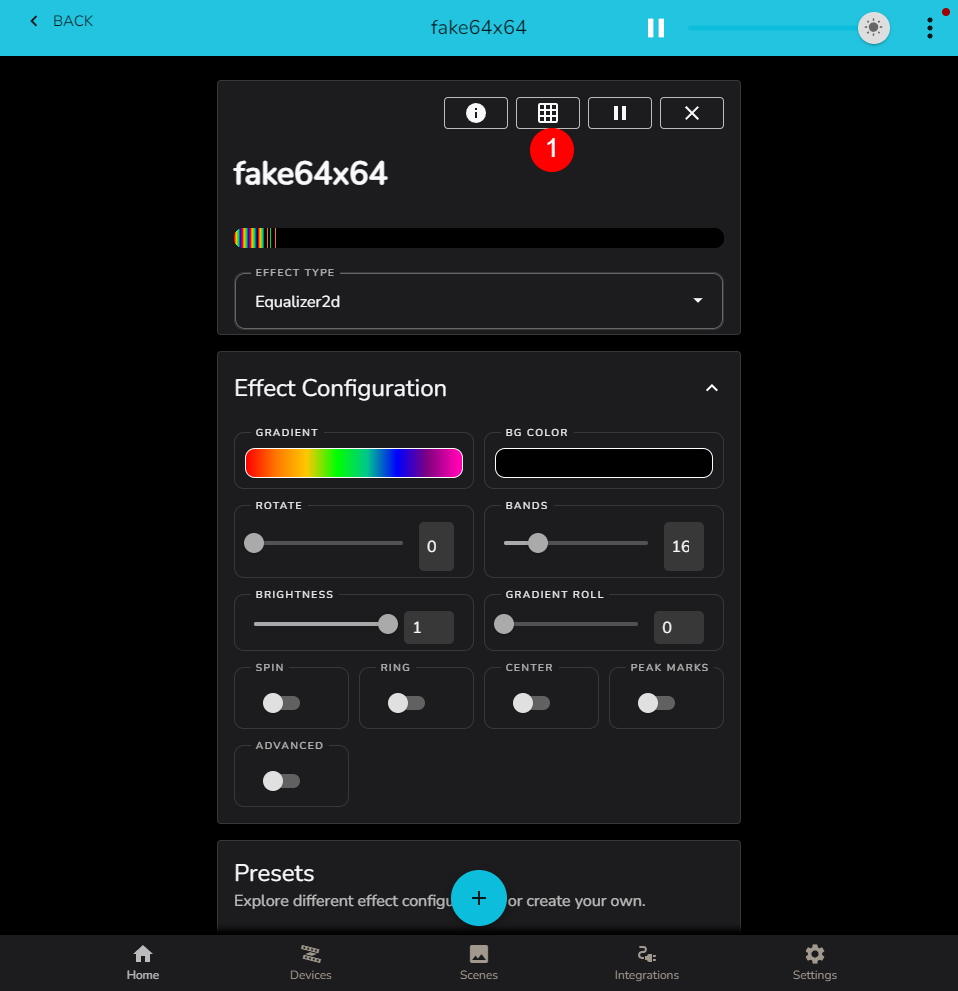
Now hit the display matrix button at (1)
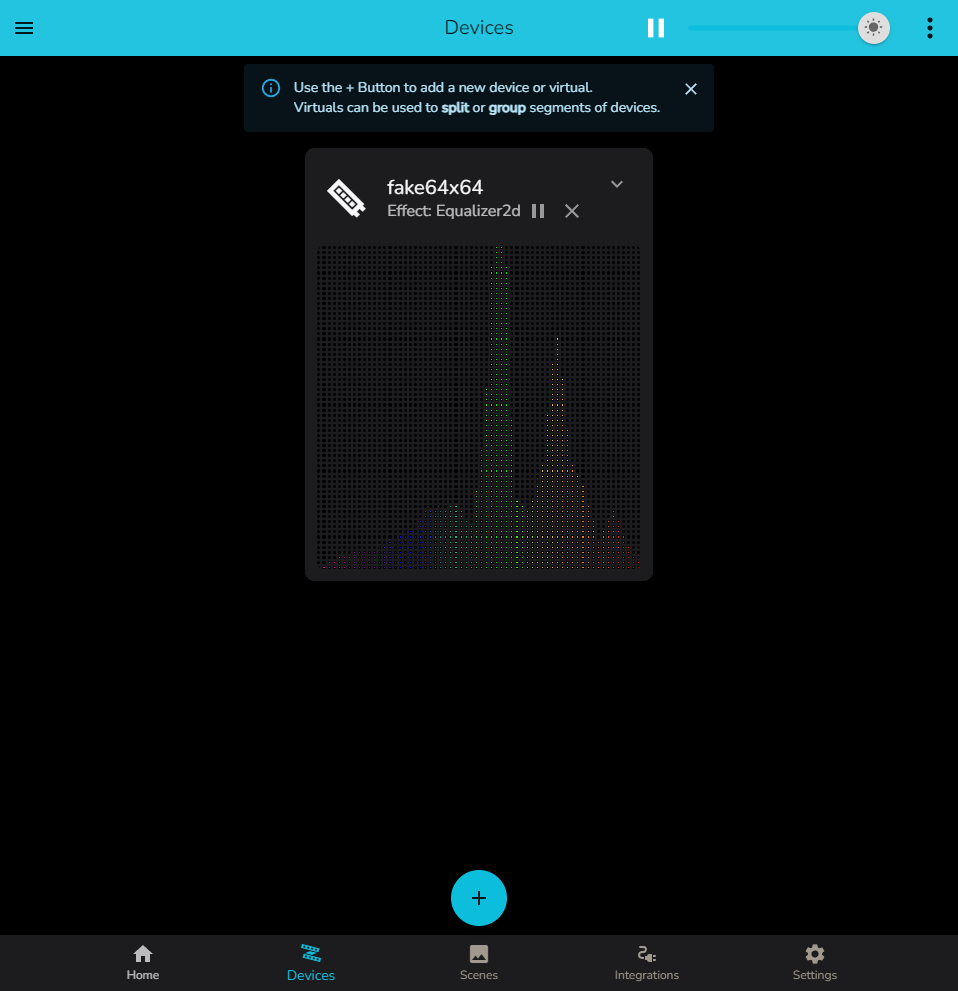
You then have a fully animating 64x64 display of the 2d eqailser, but lets tweak a few more things before you finish.
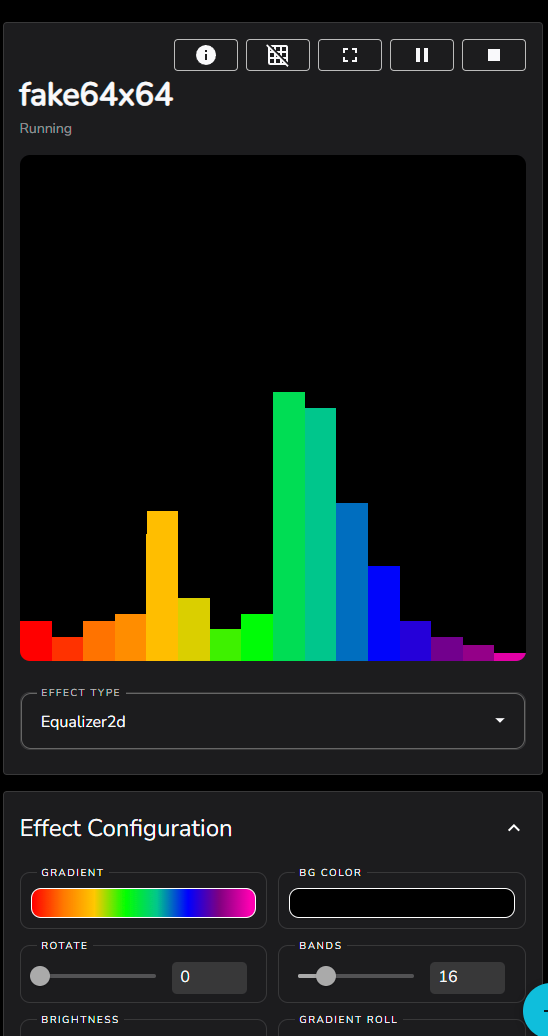
slide bands to 64 to take full advantage of the resolution available
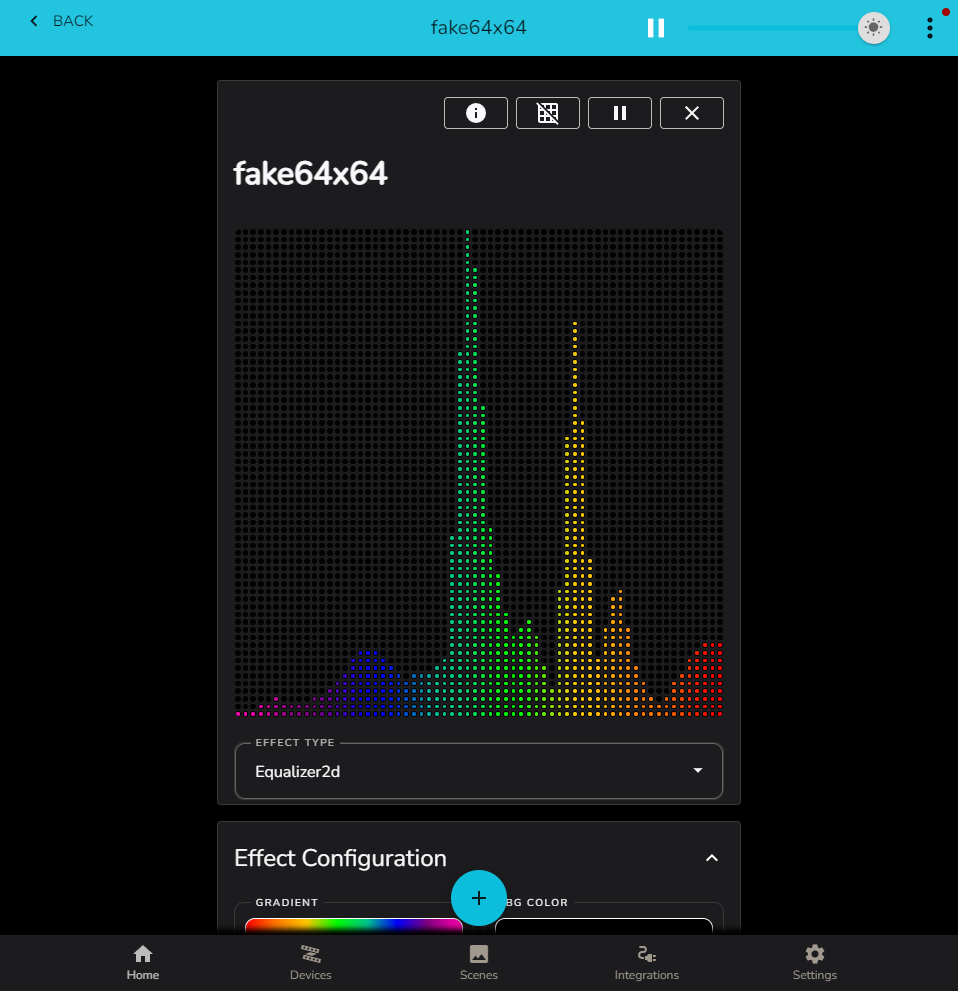
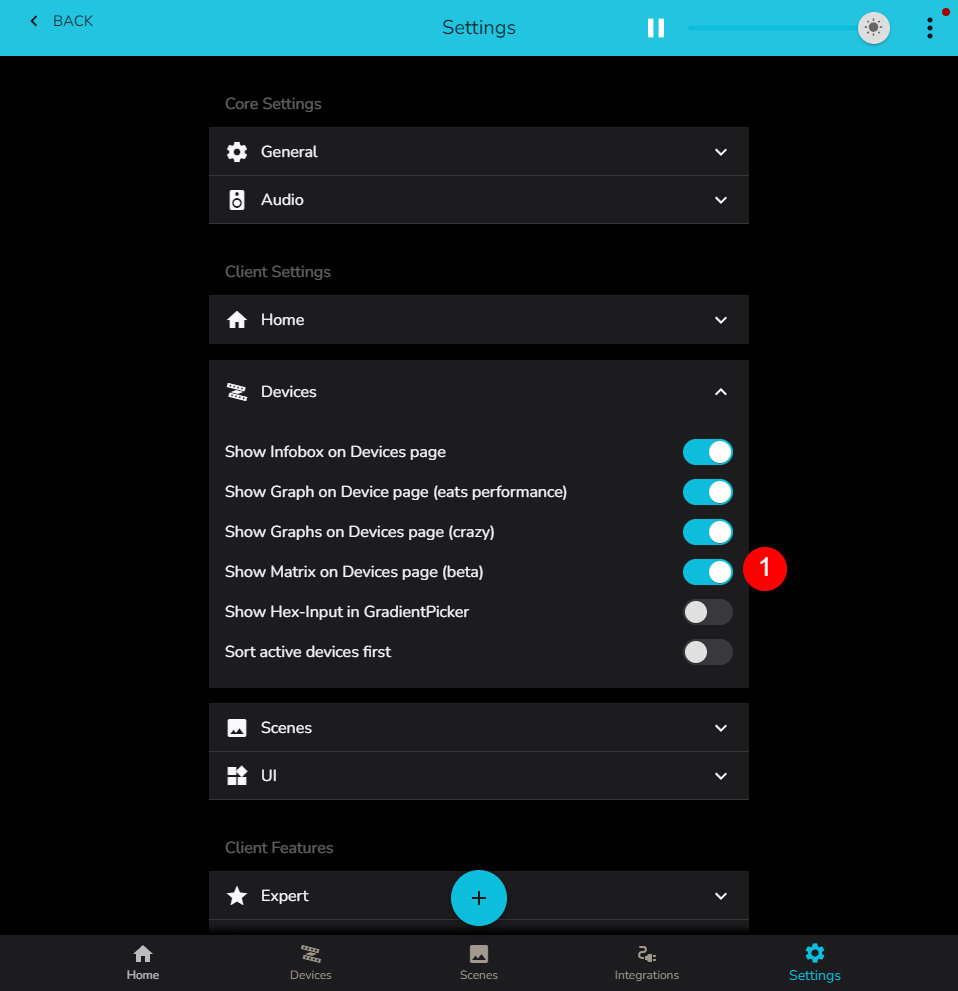
Note if you set this switch in Settings / Device / Show Matrix on Device page, as per (1) then you main device dashboard will always show matrix.
This can get a bit crowded if you have multiple devices.