How to: Report an issue
This page is intended to give guidance on reporting an issue to the ledfx community.
If you are having an issue, then you probably want to just get answers, and all this reading and stuff feels like overhead.
Just spamming cryptic woe into the discord #general channel, will quickly tire out our front office drones.
The community needs clues on how to help.
What is obvious to you, is likely unknown to others, your setup and usage likely close to unique, so to give the code droids, kept in the darkest dungeons of techno-castle ledfx, a chance, please work through this guide, and try to provide as much information as you can upfront.
If a code droid is successful, sometimes we might even recharge their batteries a little above critical and turn the lights on in their cell for a short time. Please, think of the code droids.…
A well structured issue report is far more likely to get a quick and accurate response than a vague chain of tech babble. Invest in solving your problems so that the community can invest in helping you.
A screenshot or even a video of your interaction, if you can reproduce the issue does wonders for the logic circuits of our code droids, well, reduces the chance of burnout, and we are all out of spare cards.

Discord or Github?
Whatever works for you. Github is closer to the coal face, but discord is more immediate. If you are not sure, try discord first. Some people don’t want to be in discord, and thats fine, then use github.
If you are using Discord, PLEASE use the #help_and_support channel. Create a post in there, the threading model is far more discoverable for future users to follow your breadcrumbs to solution. It keeps the conversation focused and will lead to a faster solution. Things just get lost in #general over time.
If you are using Github then please raise an issue in Ledfx issues
Issue template
When you open an issue via github, you will automatically get a template to fill in. Please fill in as much as you can.
If you are using discord, Please read this before posting then please try to follow the same structure, just hit the copy button here.…
Describe the bug A clear and concise description of what the bug is.

Steps to reproduce the behavior:

- Go to '...'
- Click on '....'
- Scroll down to '....'
- See error

Expected behavior:

  A clear and concise description of what you expected to happen.

Screenshots:

  If applicable, add screenshots to help explain your problem.

Traceback:

  If applicable, add the traceback log that LedFx outputs when it encounters an error.

  Usually starts with "Traceback (most recent call last):"

LedFx Host Information (please complete the following information):

- OS: [e.g. iOS]
- Installation Method: [e.g. Anaconda, Python, Windows EXE, pip]
- LedFx Version: [e.g. 2.0.104 - use ledfx --version to find out]

Additional context:

  Add any other context about the problem here.

  Please add a config.json and a ledfx.log as described in the documentation
How to launch with the -vv option
Launching ledfx with the -vv option will give you more verbose output in the logs, which can be useful for debugging.
If you are launching from the command line, you can add the -vv option to the command.
Open a terminal and run the following command:
.\ledfx -vv --open-ui
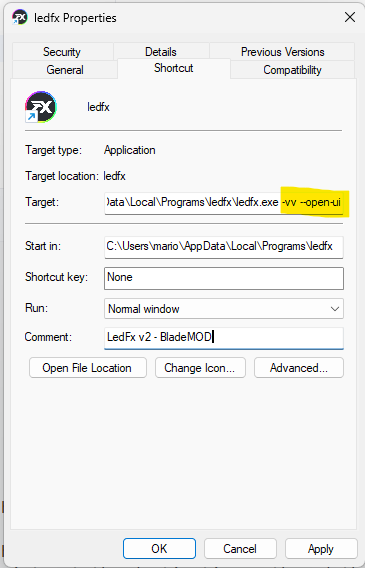
If you are launching from the desktop shortcut, you can add the -vv option to the command in the shortcut.
Right click it and select properties, then add -vv to the end of the target field. In this example we also have –open-ui which is useful to get straight to the user interface.
How to find the config.json and ledfx.log
Now you have your logging verbose, and have relauched and reproduced your issue in ledfx, we need to find the assets and place copies of them in your issue report.
They live in the .ledfx directory, which is often a hidden directory in your user home directory.
The exact location is OS dependant.
Examples being, but not limited to, the following locations
Windows:
C:\Users\username\AppData\Roaming\.ledfx
%appdata%\.ledfx
Linux:
/home/username/.ledfx
~/.ledfx
MacOS:
/Users/username/.ledfx
~/.ledfx
The config.json and ledfx.log files are the most important files to include in your issue report.
If you have read this far, the humble code droids thank you, and look forward to their brief respite from the darkness, should they be able to solve your problems.…