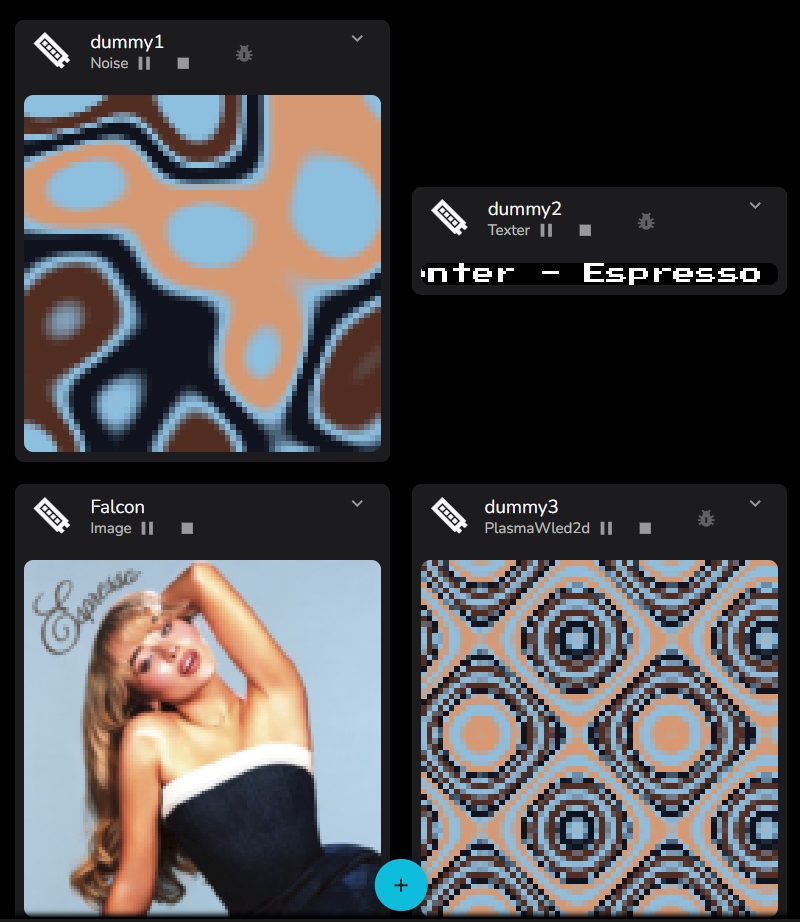
Now-Playing
Overview
The Now Playing feature connects LedFx to your music playback and drives three types of visual update automatically:
Gradient — extracts a color palette from the album artwork and applies it to your selected virtual and active effects.
Track Text — scrolls the artist, album, and track title across chosen virtuals when a new track starts.
Album Art — displays the album artwork on chosen virtuals for a configurable duration.
All three are independent — you can enable any combination of them.
Sources
Now Playing receives track information from providers. Two are currently built in:
Provider |
Platform |
Setup required |
|---|---|---|
Sendspin |
Any |
Yes — see Sendspin |
Windows only |
None — starts automatically |
When Sendspin is the active audio source, it will be the active now-playing provider exclusively. Noting that any local audio on the host machine may be completely unrelated to the sendspin source.
Otherwise, SMTC for windows ( and future providers ) will be the active now-playing provider, providing metadata for whatever the platform reports as the currently playing media (Spotify, browsers, media players, etc.) on the host machine.
Other platform implementations for Linux and Mac will be implemented in due course.
Sendspin will provide album art references for the playing track.
Providers such as SMTC can provide poorly matched video thumbnails, therefore for the platform providers, the track metadata is normalised to remove common cruft ( such as HD Official Video ) and submitted to MusicBrainz / Cover Art Archive to resolve the album artwork.
Simple scoring algorithms are used to attempt to select the most relevant album art, avoiding “best of” and various music music anthologies. It is a relatively weak implementation that we will improve over time.
The MusicBrainz / Cover Art Archive response will be several seconds after the initial display of the track title.
Accessing Now Playing Settings
Navigate to Settings → Features and locate the Now Playing section.

Select Manage to open the Now Playing configuration dialog.
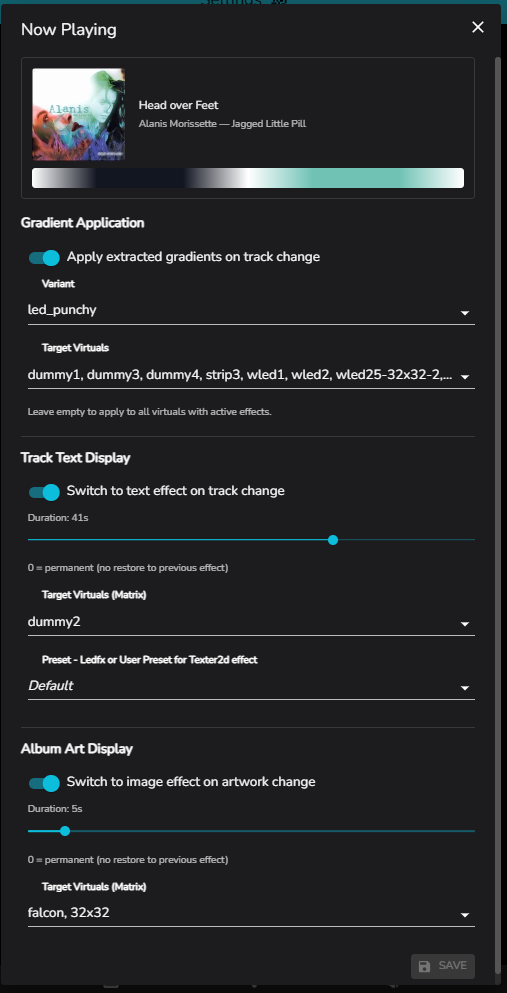
The dialog has a top section showing the current playing album art, track and album title. It is then divided into three sections: Gradient, Track Text, and Album Art.
Gradient
When enabled, LedFx extracts a color palette from the current track’s album artwork and applies it as a gradient to your selected virtuals with active effects.
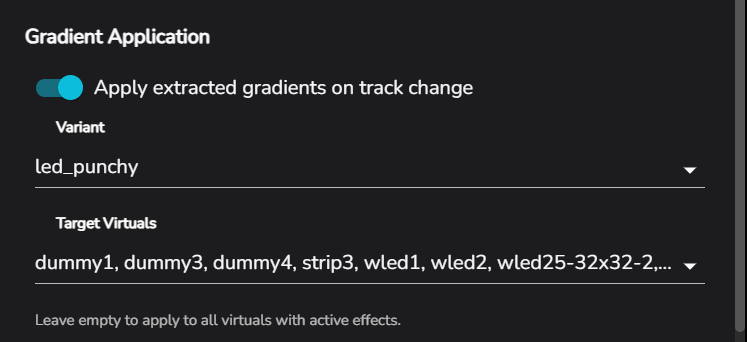
Setting |
Description |
|---|---|
Enabled |
Toggle gradient updates on or off. |
Variant |
Controls how the gradient is tuned for LEDs. |
Virtuals |
Which virtuals to update. Leave empty to apply to all virtuals. This is a drop-down multi-picker, all available virtuals will be listed, and the user can toggle each on / off as part of the selected set |
The gradient is re-applied each time album artwork changes. If no artwork is available for a track, the gradient is left unchanged.
Track Text
When enabled, a scrolling text effect showing the artist, album, and track title is temporarily applied to chosen virtuals at the start of each new track.
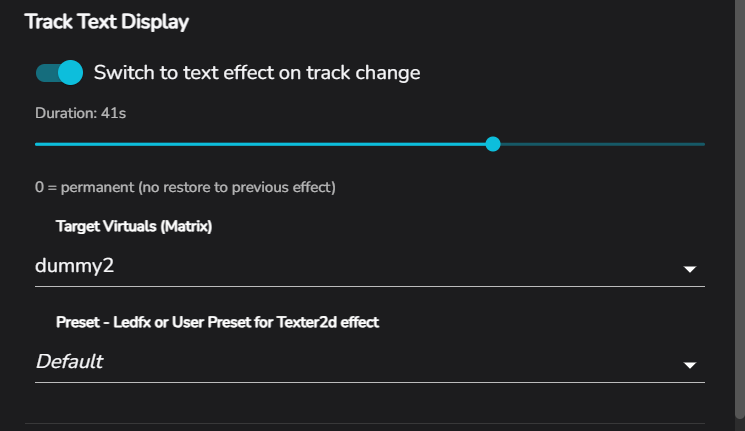
Setting |
Description |
|---|---|
Enabled |
Toggle track text on or off. |
Duration |
How long (in seconds) the text effect runs before restoring the previous effect. Set to |
Virtuals |
Which virtuals to show the text on. Track text is only applied to virtuals listed here — leaving this empty disables it entirely. This is a drop-down multi-picker, all available matrix virtuals will be listed, and the user can toggle each on / off as part of the selected set |
Preset |
Optionally base the text effect on an existing user |
Album Art
When enabled, the current album artwork is displayed on chosen virtuals for a configurable duration.
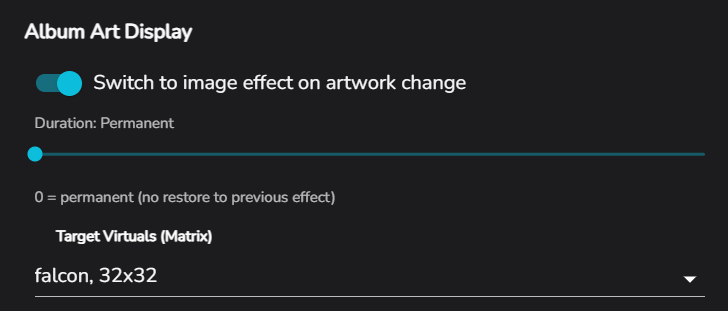
Setting |
Description |
|---|---|
Enabled |
Toggle album art display on or off. |
Duration |
How long (in seconds) the artwork effect runs before restoring the previous effect. Set to |
Virtuals |
Which virtuals to show the artwork on. Leaving this empty disables album art entirely. This is a drop-down multi-picker, all available matrix virtuals will be listed, and the user can toggle each on / off as part of the selected set |
Album art uses the imagespin effect internally with the artwork preset. The artwork image is saved in the assets as now_playing image and referenced by the effect. It is overwritten with each new track, preventing unwanted image cruft.