How to: Create a Keybeat gif
This short guide should outline the basics of using keybeat to synchronize your favorite gif or webp animations with the music beat
First we need a matrix device
If you don’t already have one, follow this guide to create a dummy matrix device: How to: Create a Dummy Matrix
64 x 64 is the maximum size that can currently be correctly displayed in the browser UI due to the limit of 4096 pixels communicated to the front end. However, any size can be used with physical devices, development and test is generally done on a 128 x 128 panel at 16K pixels
Setting up Keybeat
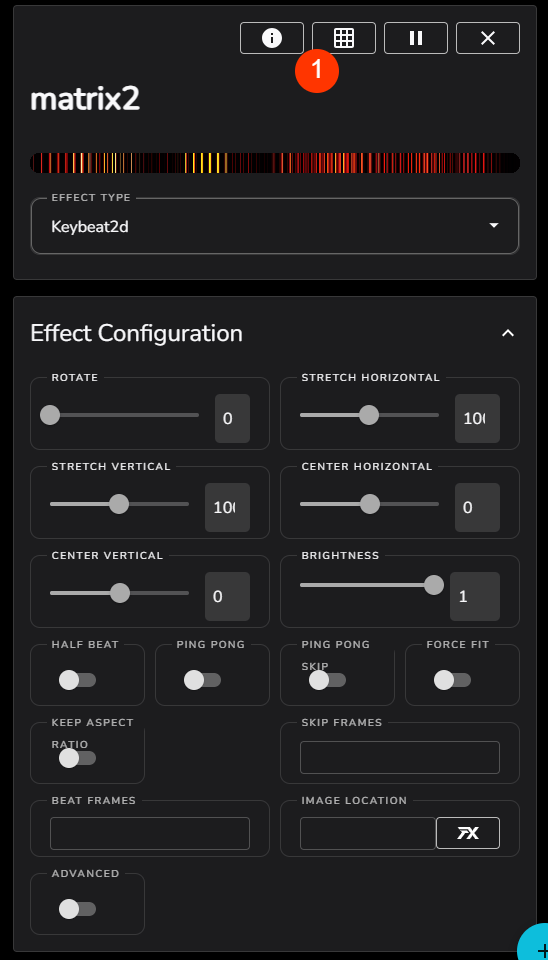
On opening our new device, select the keybeat effect and then hit the matrix display button as per (1)
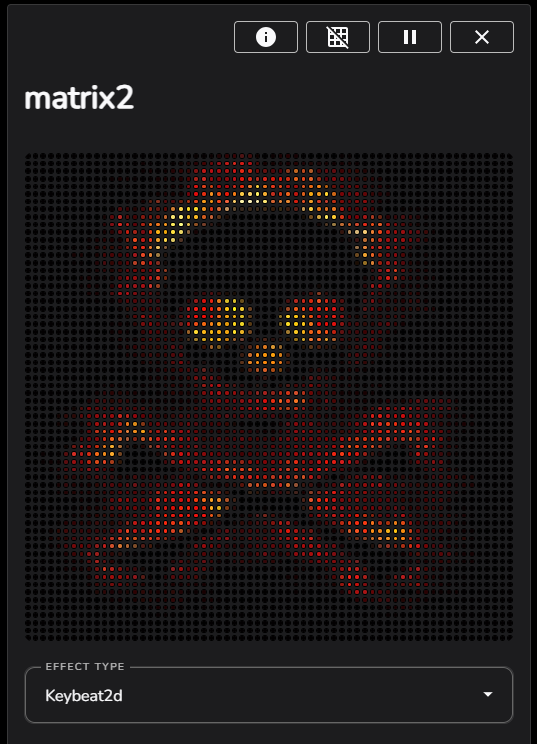
You should get this animation which is basically a warning that the currently referenced GIF listed in “image location” which at this point is empty is not valid
To test a valid GIF path lets try a preset, in this case Caddyshack as per (1)
We should see the GIF animation playing to the music beat, and a valid file path in the \"image location\" in this case on a windows host taken from the ledfx install files, noting your location will be different.
C:\Users\your_user_name\LedFx\ledfx_assets\gifs\caddy.gif
Choosing your own GIF
But it could be any path on the system, with the relevant OS path syntax OR a valid URL to the internets
It should be noted that the PIL image loader is capable of handling many formats, including, but not limited to, gif, webp, bmp, png, jpg etc. It does not need to be a multi frame animation, static images will also work.
So now lets do that and choose a random webp ( more effiient than a GIF
) from the great wild west of content. Noting this particular URL may
not be valid in due course, but the method will be valid
https://media4.giphy.com/media/v1.Y2lkPTc5MGI3NjExam56cng1bjcyZWRpMzlsb2M1MG5yb3VvaTZxZTI5aDV4Nm81cXFpcCZlcD12MV9pbnRlcm5hbF9naWZfYnlfaWQmY3Q9Zw/c76IJLufpNwSULPk77/giphy.webp

Paste the URL into (1)
Ensure that (2) is true to force stretch the image to the display ( or if you are adventurous, you can leave that false and play with center and stretch sliders
Set (3) to True for ping pong, this will auto play the animation in forward and reverse, so you don’t need to worry if the animation loops nicely. For most animations this is very useful.
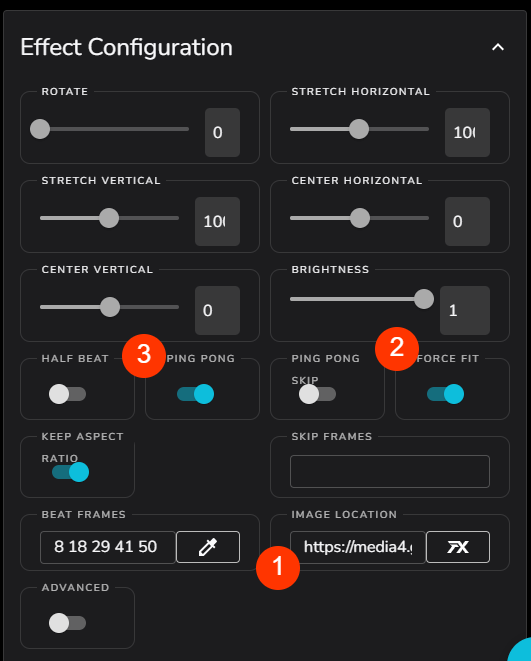
Half Beat allows you to interpolate beat frames to every second beat, so half the playback to the music beat speed (edited)
Ping pong skip will ignore the start and end key frames on playback which sometimes helps to stop a ping pong playback from looking glitchy. Just try it when everything else is done or ignore it.
Skip frames is to allow removal of bad animation frames from playback and interploation calculations, some very nice GIFs tend to have some bad frames in the beginning or end, so you can remove them if you have to. Generally ensure this field is empty
Setting up the beat key frames
Beat frames is the heart of the engine for matching the animation to the music beat. Right now we have inherited values from CaddyShack or which ever preset you may of started with so make sure you clear off (1). Just replace it all with a space, if your edits don’t stick. ( hey it’s a bug, we know )
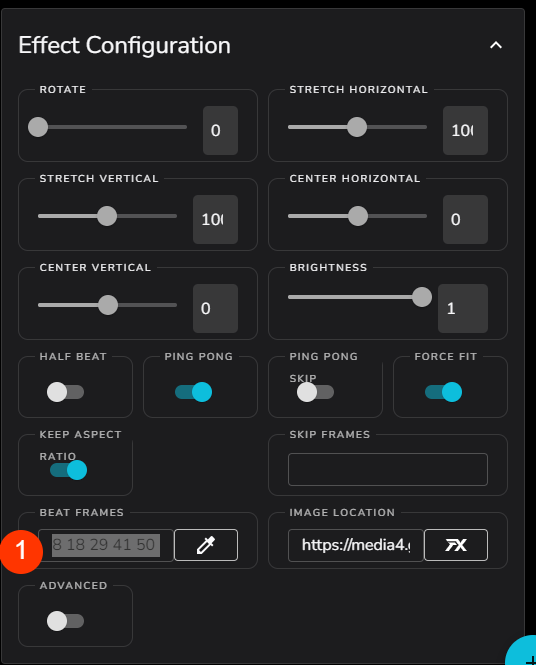
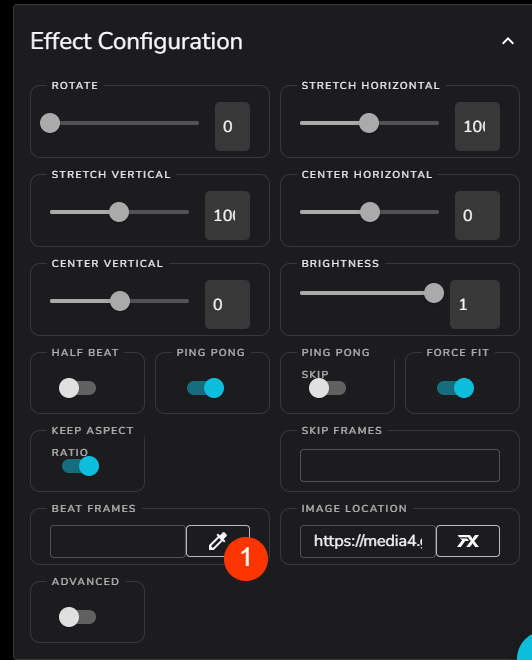
Now we need to set up the real beat frames where we want the animation to land on each beat of the music. You could just type them in here seperaated by spaces, using external software to examine the GIF, but that sounds like no fun, so lets press the button at (1) and use the magic developed by Blade
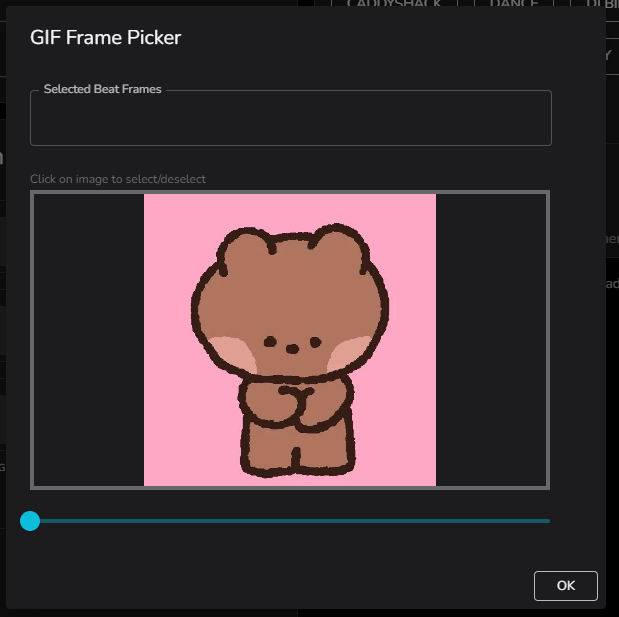
We currently have no beat frames, and the blue slider is on frame 0
I want a beat on the start of this animation so click the main picture to mark this frame as a beat frame
The frame turns blue so you know the current frame is a beat key, and we see the frame number added in the string at the top and marked on the slider timeline
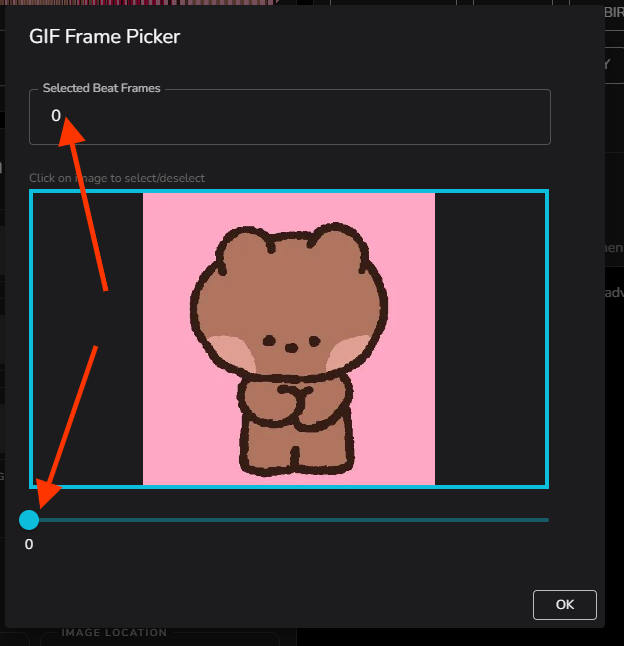

Using the slider, next select the next frame to key to the beat, using skill and judgement. In this case when the bear has first opened the heart string, which is frame 7, so we slid the slider until we liked the animation frame, and click the main image ( you can deselect a frame the same way ). The border turns blue, and 7 is added to the string and to the slider timeline
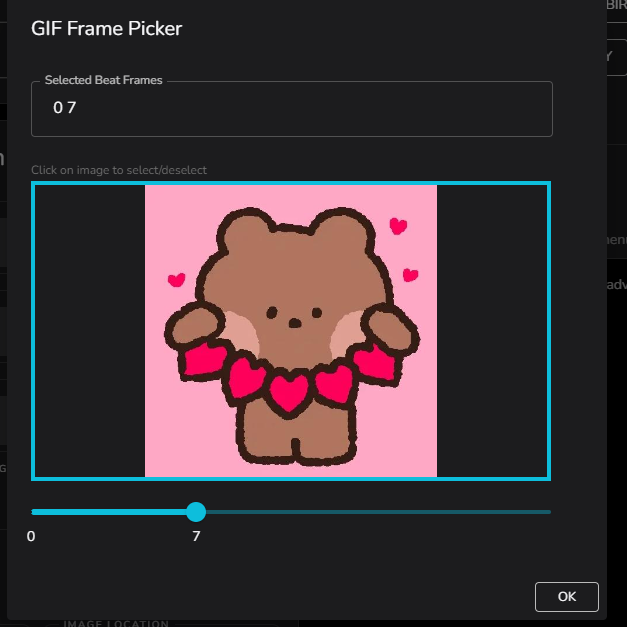
Add more frames until you are satisfied, you can always come back and edit until you are happy. In this case I only want 1 more frame at 14. The keybeat interpolator will deal with ensuring the intermediate frames are played back for maximum smoothness.
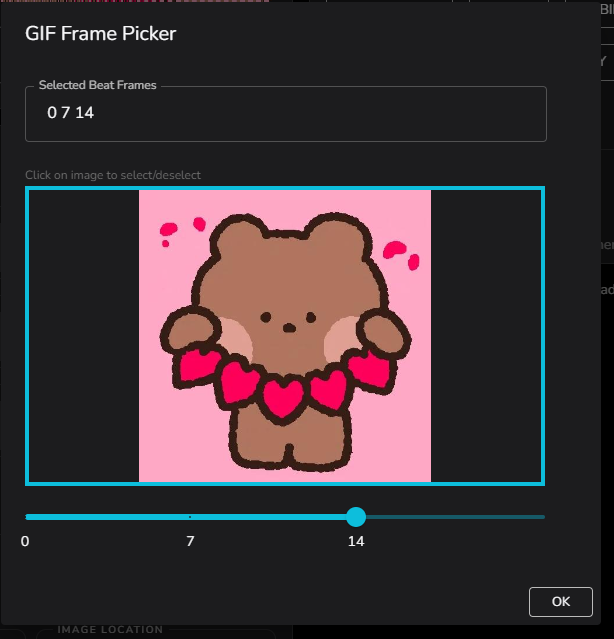
When you are done return to the main effect page with OK
You should see your keybeat frames as selected in the beat field at (1)
Save your work as a user preset
DONT FORGET to save your hard work by adding it as a new preset each time at (2) you can do this each time with a slightly different name, and delete the old one.…
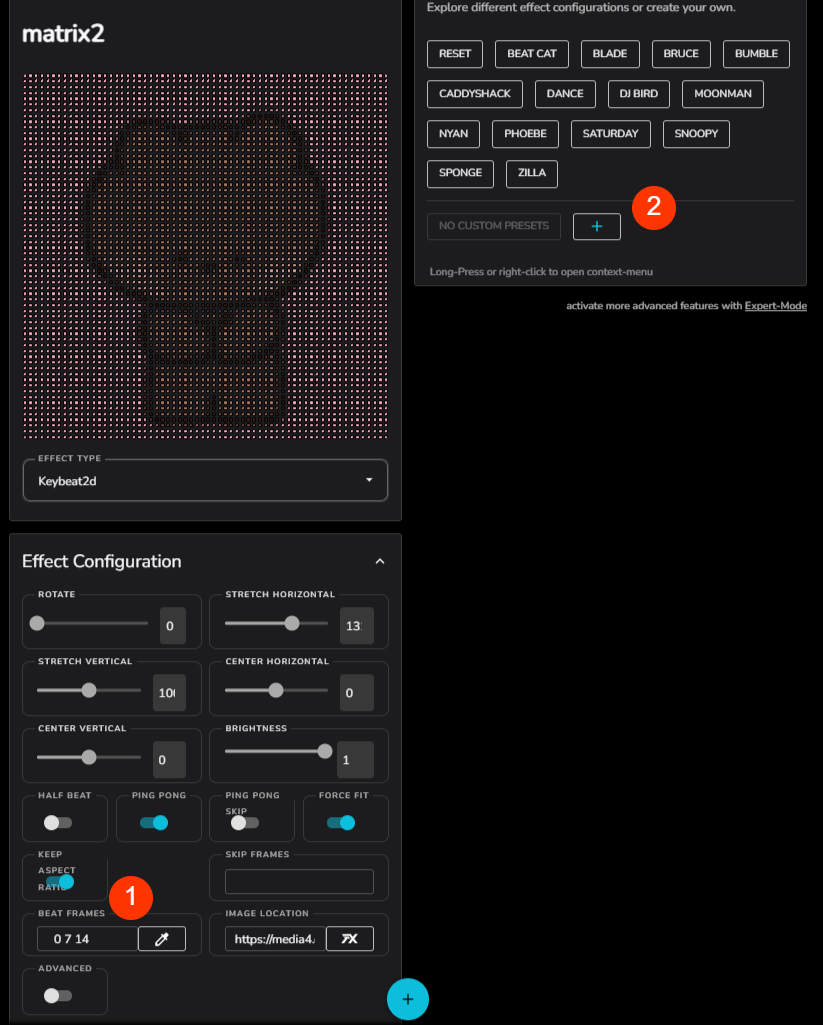
.…Profit
Play music, make that bear earn those dollars, make it rain.…
Remember you can play local gifs and webp just as easily as remote URLs with the local OS path format, for example
C:\Users\your_user_name\Downloads\duck.gif
Also remember that there are a lot of glitchy GIFs out there, before blaming LEDFX convince yourself using 3rd party software the animation is otherwise good. If you are sure the file is good and LEDFX is at fault then raise a #help_and_support
It would not be the first time its ledfx, but please sanity first.…