Nanoleaf Device
Nanoleaf LED panels are consumer modular systems that can be arranged in creative configurations.
Nanoleaf lib support has improved, and seen to be mostly stable on UDP at 30 FPS. TCP is the fallback protocol but limited to ~5 FPS.
Nanoleaf release new hardware and firmware which may be incompatible. If you have an issue with a Nanoleaf device then reach out on discord.
Supported Models
Nanoleaf original integration was against Shape Triangles. Other device may work.
Please appreciate LedFx Dev don’t have access to the Nanoleaf variants, so if you want support you will likely need to be willing to test.
Setup
You will need your Nanoleaf device IP address. Check your router’s DHCP client list for devices with “Nanoleaf” in the name.
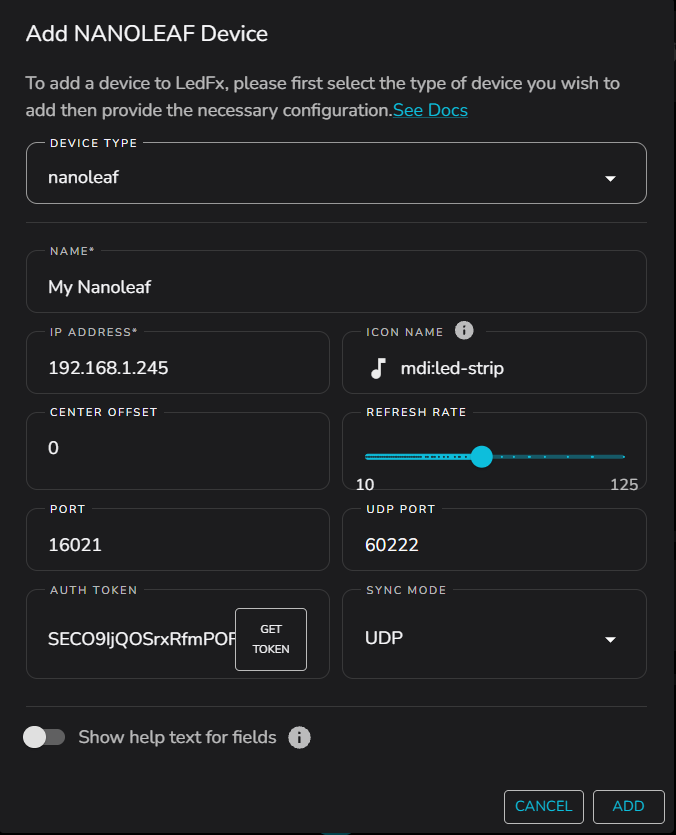
In LedFx, click on the big (+) icon and select Add Device.
Select Nanoleaf from the device type list.
Name your device.
Enter the IP address.
Generally leave the update rate at 30 FPS.
You should leave the PORT numbers as the default.
Sync mode should be left as UDP.
This has now been set as the default. If UDP is not working, try TCP mode, however, be aware this is limited to 5 FPS or less!Obtain an Authentication Token
It is necessary to obtain an authentication token from your Nanoleaf device when first configuring in LedFx
Press and hold the power button on your Nanoleaf controller for 5-7 seconds until the LEDs flash
Within 30 seconds, press the GET TOKEN button in the LedFx device config. A token should appear in the text box. This token will be saved with your LedFx config and will only need replacing should you reset your Nanoleaf device Firmware.
Pixel count and layout
LedFx will automatically read pixel count and layout from the Nanoleaf controller and map these to a 1d strip.