Govee Device
Ledfx has now added support for Govee LAN enabled devices that are Razer / Dreamview compatible.
Ledfx has only limited access to examples, so if you find a device that should be supported by is not, please raise in discord Help and Support
At the time of writing compatible Govee products were listed at this link under the Supports Razer/Dreamview tab
It is not known exhaustively, which of these are truly functional against ledfx current integration.
Be aware: An active session from LedFx towards a Govee device may prevent the Govee Desktop app from opening correctly, it may appear within Task manager but no substantiate its UI window. Stop LedFx, close Govee Desktop from within Task Manager, and relaunch Govee Desktop.
Known working examples
Standard Lights
Known working with Stretch To Fit set to off
H6061 Glide Hexa Light Panels
H6167 Govee TV Backlight For 40-50 inch TVs
H61BA Govee RGBICW LED Strip Light 16.4 ft
H61D5 Neon Rope Light 2 16.4 FT
H615C RGB LED Strip Light 50 FT
TBD: add more here on discovery…
Matrix Govee - AVOID
There is currently no good story around Govee matrix lights such as curtains.
The majority of Govee effects appear to be driven local to the controller, not via the LAN interface.
Even Govee Desktop app and Razer Chroma where supported is very limited.
Currently investigated matrix lights include:
Device |
Description |
LEDs |
Govee Seg |
Chroma Seg |
Notes |
|---|---|---|---|---|---|
H70B1 |
Curtain Lights |
520 |
6 |
4 |
Max 20 as per vertical drops |
H6811 |
Net Lights |
480 |
NA |
NA |
Only first 224 pixels @82 seg |
TBD |
Add more here… |
TBD |
TBD |
TBD |
TBD |
H70B1 Curtain Lights 520
DO NOT PURCHASE FOR LEDFX - No Matrix support
Reasonable 1d effects, one segment per vertical drop for a total of 20
Ceases to work about 20
H6811 Net Lights 480
STRONGLY NOT RECOMMENDED FOR USE WITH LEDFX - Considered incompatible
No apparent effect from the strech bit, all colors sent are stretched across the first 224 pixels using a correct header. No apparent way to use the last 256 pixels.
82 is the max pixel value to use before pixel stretching to 224 breaks down.
Not supported by Govee app or Razer Chroma for any LAN relevant effects.
Power supply 5V 5A Raintight
Pin out from controller, button face up, noting there is no specific marking on the individual wires
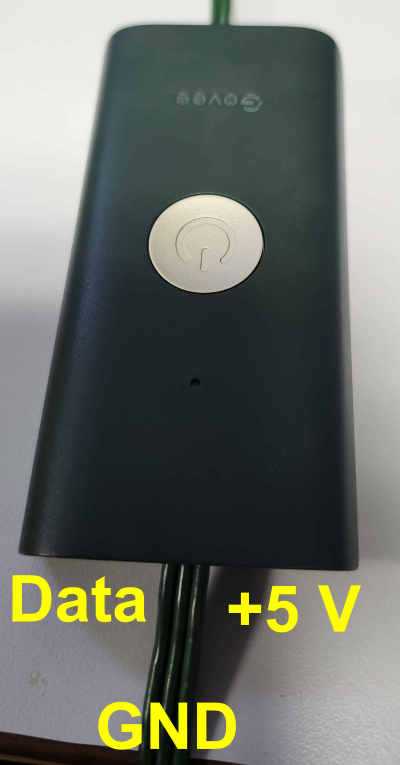
Wire |
Description |
|---|---|
Left |
Data |
Middle |
GND |
Right |
5 Volt |
Govee Device Configuration
By default compatible Govee devices are not enabled for LAN control.
This must be enabled in the Govee app for both Wifi access and LAN api control.
Find the specific device instance in the Govee app and hit the setting Icon in the top right corner.
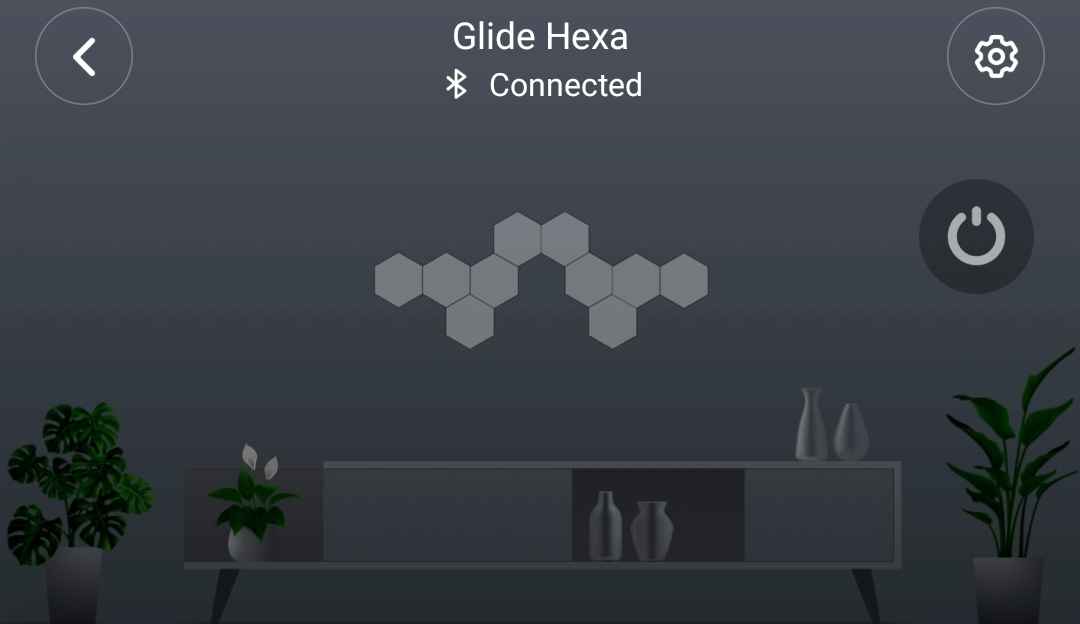
Ensure that the wifi settings are correctly configured for you wifi network name and password. The device must be ON and connected to the app by bluetooth to achieve this the first time.
Then throw the LAN Control swith to on.
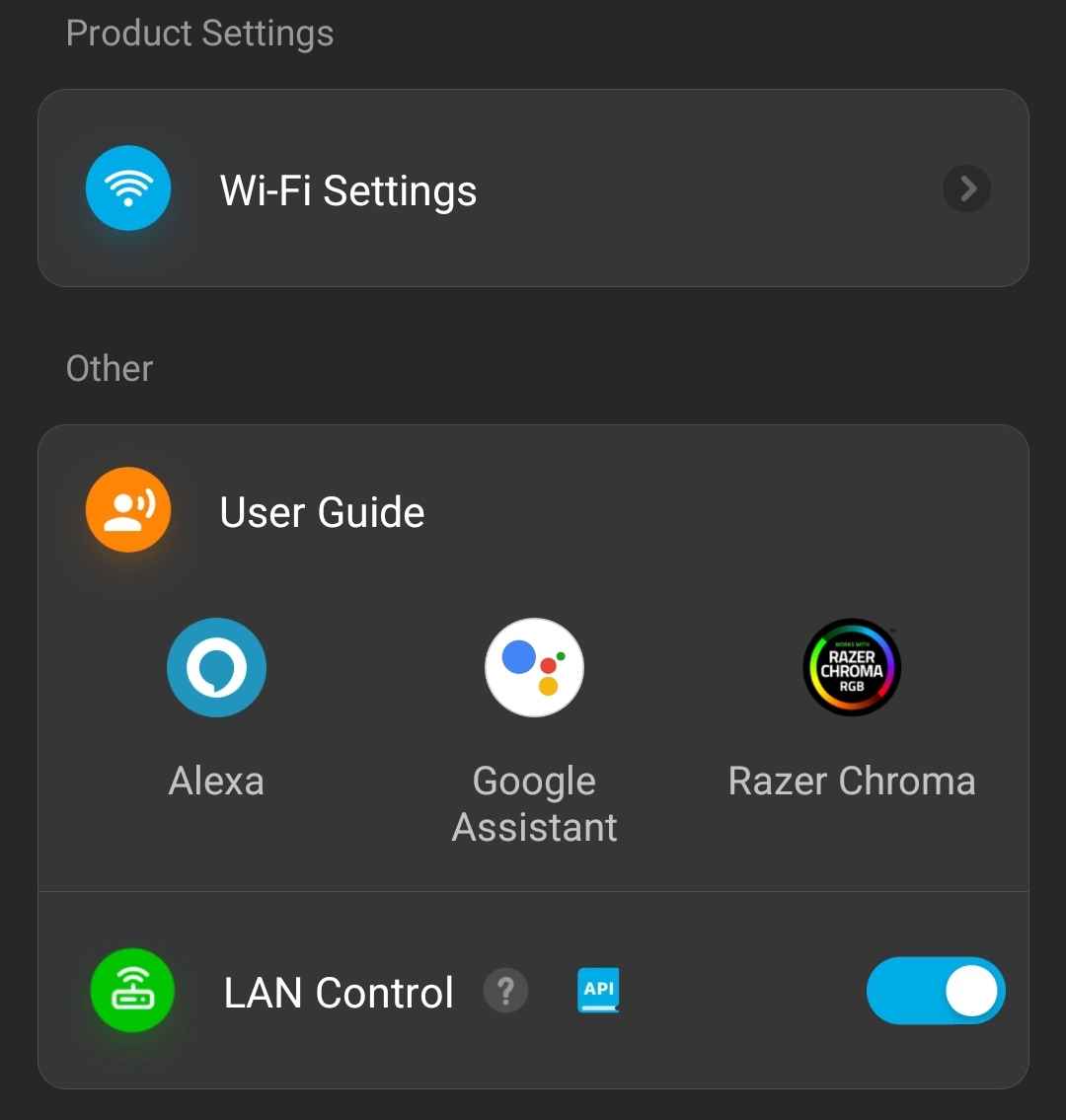
While in this page, if you haven’t already, take note of the device MAC address and ensure it is reserved in your router DHCP settings to a fixed IP address.
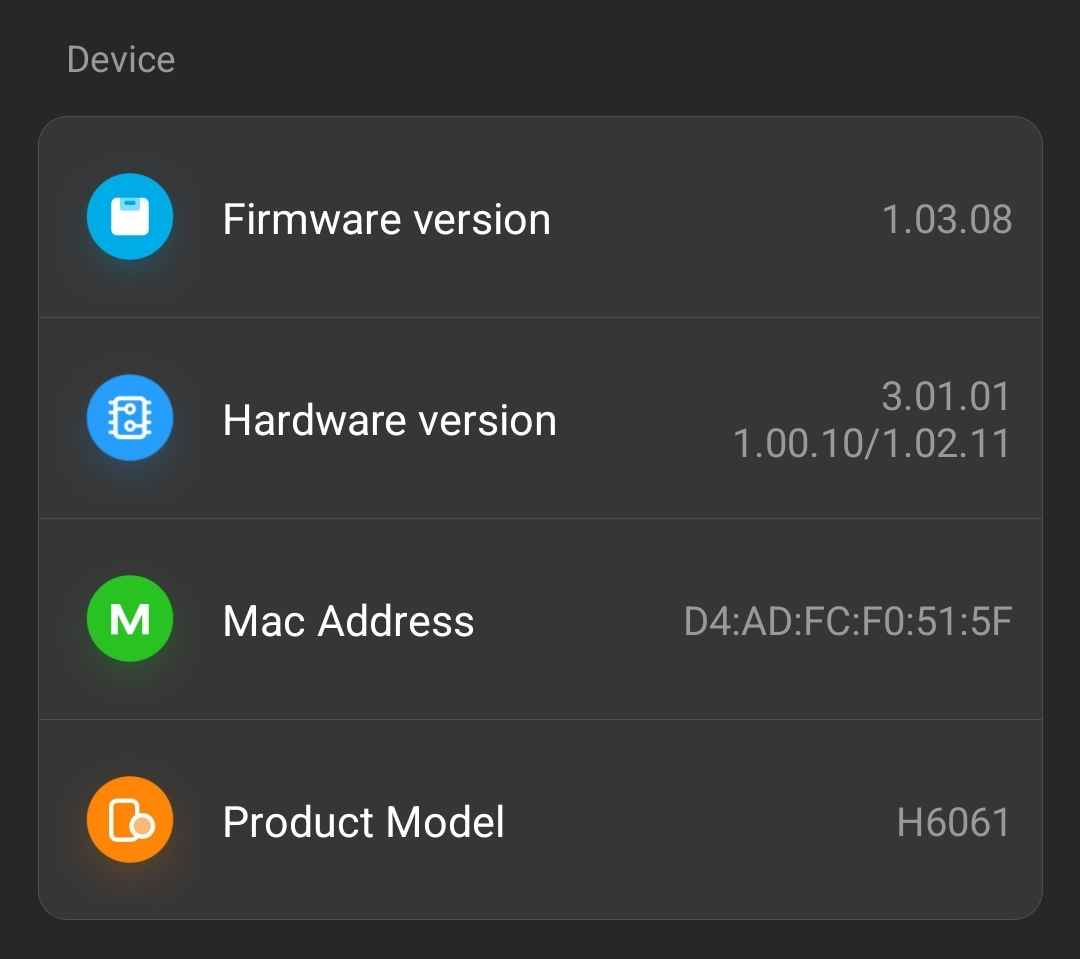
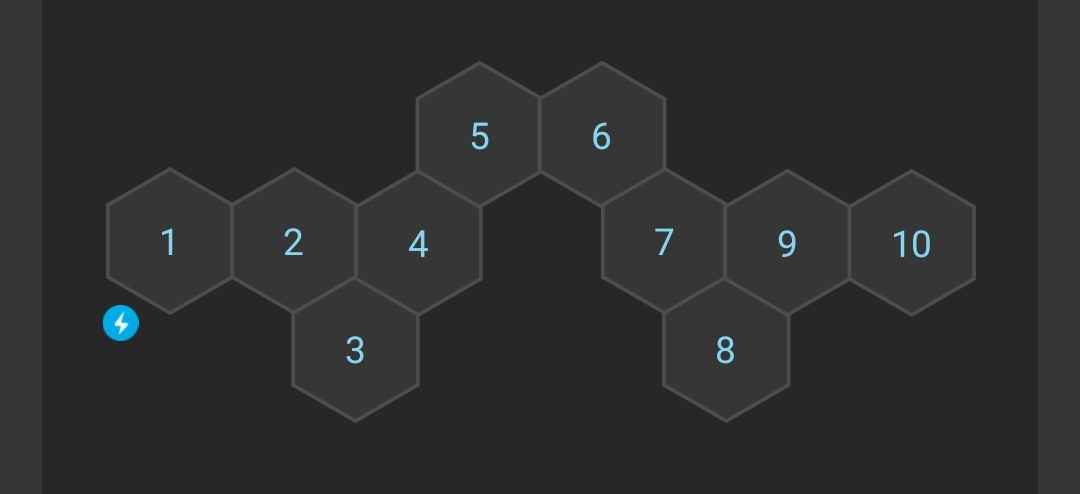
You also need the device segment count from the Light Panel Layout page, which is under Layout and Calibration. In this example the segment count which you will use in the pixel count field in ledfx is 10.
Ledfx Device Configuration
Ledfx does not currently support auto discovery for Govee.
Devices should be on a fixed IP addess through DHCP reservation against the Govee device MAC address via your router configuration.
Via the Add Device button in the Ledfx UI, select Govee.
Input your desired device name in the Name field.
Input number of segments as seen in the Govee app in the Pixels Count field.
Input the IP address of the device in the IP Address field.
Currently the default refresh rate is set to 40 on govee devices. This is from very limited testing, users are encouraged to test and provide feedback on the optimal refresh rate for their devices.
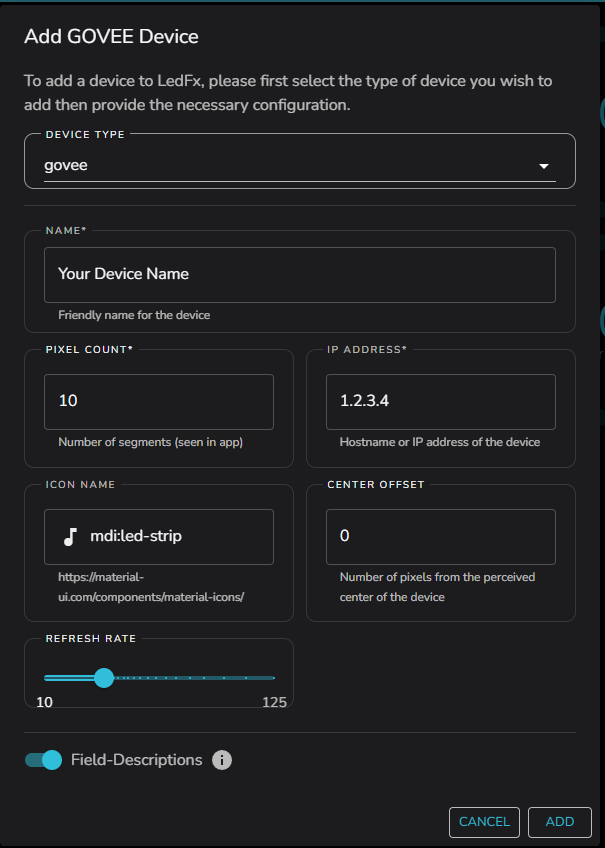
Hit add and, your Govee device should now be available in the devices view.
Connection refresh
If Ignore Status is set to the default Off, If Govee device does not respond to a device status enquirey at ledfx startup, it will be marked offline.
If the device is powered on, or otherwise made available after startup, pressing the refresh button on the device will attempt to reconnect to the Govee device.
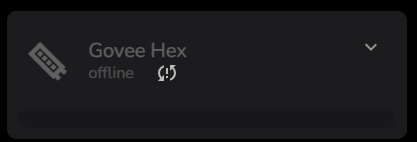
If you have firewall issues blocking Port 4002 the status check can be disabled by setting Ignore Status to On. Ledfx will assume that the devices is available.